

The Basics of PDF Accessibility
Our digital lives now revolve around PDF documents. From scientific abstracts to menus, bank statements to invoices, PDFs are the standard format for a wide range of information. However, many of these documents are still inaccessible, creating significant barriers for many people. In this blog post, we will explore the basics of accessible documents and why it is important for the businesses and also the organizations to address this issue.
What is PDF Accessibility Remediation?
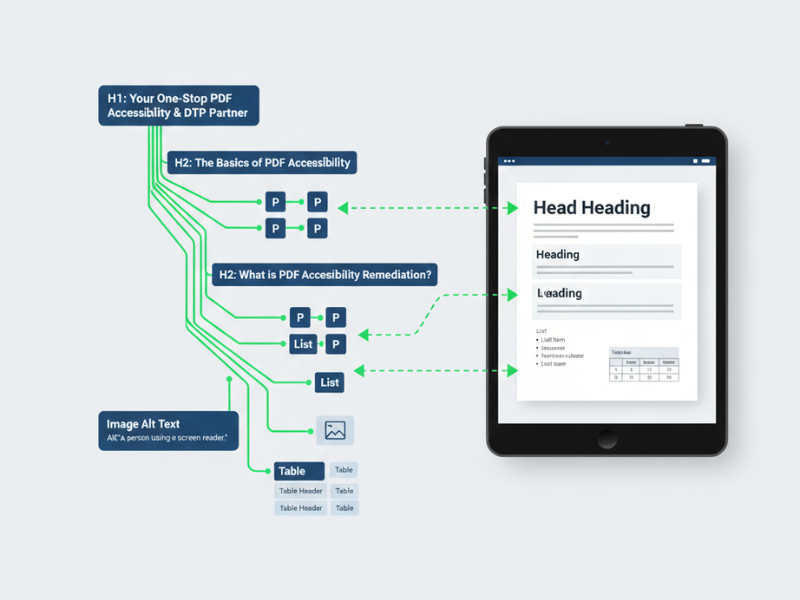
PDF Accessibility Remediation is the process of converting Portable Document Format (PDF) papers into digital documents that are accessible and compliant with the accessibility guidelines of Section 508 of the Americans with Disabilities Act (ADA).
Remediation for PDFs entails identifying potential barriers that prevent individuals with disabilities from reading the content and developing strategies to reduce or remove them.
Tasks involved in PDF Accessibility Remediation are:
- Rearranging content for a better reading experience.
- Putting text descriptions in place for pictures.
- PDF tagging for lists and headers.
- Ensuring that tables are identified and organized correctly.
- Adding captions to videos.
In order to make PDFs inclusive and accessible to individuals with disabilities, remediation is an essential first step. People with disabilities who rely on assistive technology may be hampered by inaccessible PDF documents.
Let’s say your company lacks the resources necessary to make PDFs accessible. In that case, the best you can do is to outsource it to experts who use the latest standards and guidelines to quality-check the PDF documents and make them ADA-compliant.
How to Make a PDF Accessible
For a more seamless process, you must adhere to specific guidelines when creating accessible PDF documents. A detailed tutorial on making a PDF accessible can be found below:
- Create a Logical Reading Order
Screen readers’ interpretation of your document is greatly influenced by the arrangement of your tags in the tags tree. The tags must be arranged logically to ensure that users can easily navigate the content. In a similar vein, your PDF’s reflow order should seem natural. By ensuring that the containers in your content pane are stacked correctly, you can control this.
- Add PDF Tags
One of the most important steps in making PDFs accessible is adding PDF tags. An accessible PDF’s structure tags identify page elements such as sections, paragraphs, headings, and tables and specify the reading order. An accessible PDF document’s tag structure allows it to be reflowed and resized for easy viewing on both larger and mobile devices. When creating accessible PDF documents, take into account the following tags:
- Heading Tags: They arrange the content within your document and give it structure. H1 should contain the first heading, which should be followed in a hierarchical structure up to H6. You shouldn’t skip any of the levels.
- Link Tags: Links in an accessible PDF should have descriptive link tags.
- Paragraph Tags: PDF accessibility is incomplete without a paragraph tag, which can be used to display regular paragraph text.
- List Tags: Lists are an excellent tool for maintaining content organization. Use list to define the content within each list item, list tag for individual items, and list to wrap the entire list in order to properly structure them.
- Table Tags: Data tables should have distinct headers for both columns and rows, with a scope set aside to connect header cells to their data, in order to create accessible PDF documents. Simplifying complex tables is a good idea, but if cell IDs are used, they must guarantee correct association. A table of contents should be properly organized with navigational links for convenient access, and layout tables shouldn’t be labeled as data tables.
- Image Tags: When adding images for PDF accessibility, make sure to include meaningful alt text that appropriately describes the image and wrap them in a figure tag.
- Add Alt Text
In order to help users who are blind or visually impaired understand the purpose of images, alternate text is a brief description that is added to the images. It is essential for PDF accessibility because it guarantees that everyone has equal access to information. In the process of Accessibility Panel, select Set Alternate Text. You will be guided through every image in your document by a popup. Here, you can mark images as “Decorative” if they don’t contain any important information or add or modify alt text as needed.
- Check Color Contrast
Make sure the color contrast in your PDF text and elements is clear; for standard text, the ratio should be at least 4.5:1. You can use programs like Color Contrast Analyser or Adobe’s Accessibility Checker to check this. For improved outcomes and a more seamless process, address any problems in the original source document.
- Tag Interactive Elements For PDF Accessibility
Correctly tagging interactive elements, such as form fields, is crucial to making accessible PDF documents keyboard-only navigable. Each form field should have an understandable label and, if necessary, a useful tooltip to assist users. To make navigation simple, arrange the tabs in a logical and understandable order. Use informative link text when adding hyperlinks so that users know exactly what to expect. Avoid using ambiguous phrases like “click here.”
- Contain Necessary Metadata
To aid screen readers with precise pronunciation and easier navigation, set the document language. For improved accessibility and usability, make sure your PDF is set to display in the window options and give it a clear and meaningful title.
Key Steps to Make Interactive PDFs Accessible
- Tagging Elements
Tags are the foundation of accessibility in PDFs. Utilize programs such as Adobe Acrobat Pro to include tags for:
- Headings: Use proper levels (H1, H2, H3) to create a clear hierarchy.
- Buttons: Label buttons with descriptive text like “Submit Form” instead of vague terms.
- Form Fields
To help users understand what information to enter, add labels to form fields.
- Images: Include alt text for images or mark decorative images as artifacts to avoid confusion.
Conclusion:
Making PDFs accessible isn’t just a compliance requirement—it’s a commitment to inclusivity. By tagging content properly, adding alt text, ensuring logical structure, and meeting ADA/Section 508 standards, organizations can provide equal access to information. Investing in accessibility—whether in-house or through experts—creates smoother user experiences and stronger digital trust.
DTP Labs is a desktop publishing company based in New Delhi, India. We offer book publishing Services, PDF to Word conversions, post-translation DTP, and e-Learning localization services to translation agencies worldwide. To avail of our services, check out our website www.dtplabs.com, or contact us at info@dtplabs.com.